For corporate members - Corporate Dashboard
Last updated 18 June 2026
Corporate member dashboard guide
This guide explains how corporate members can use the MSDUK corporate dashboard.
The dashboard allows you to view your membership status, search supplier databases through MSDUK Connect, update your company profile, manage team members, contact MSDUK, and access Help Centre articles.
Logging in
Once your application has been approved, you can access your MSDUK corporate dashboard by selecting Log in on the MSDUK website.
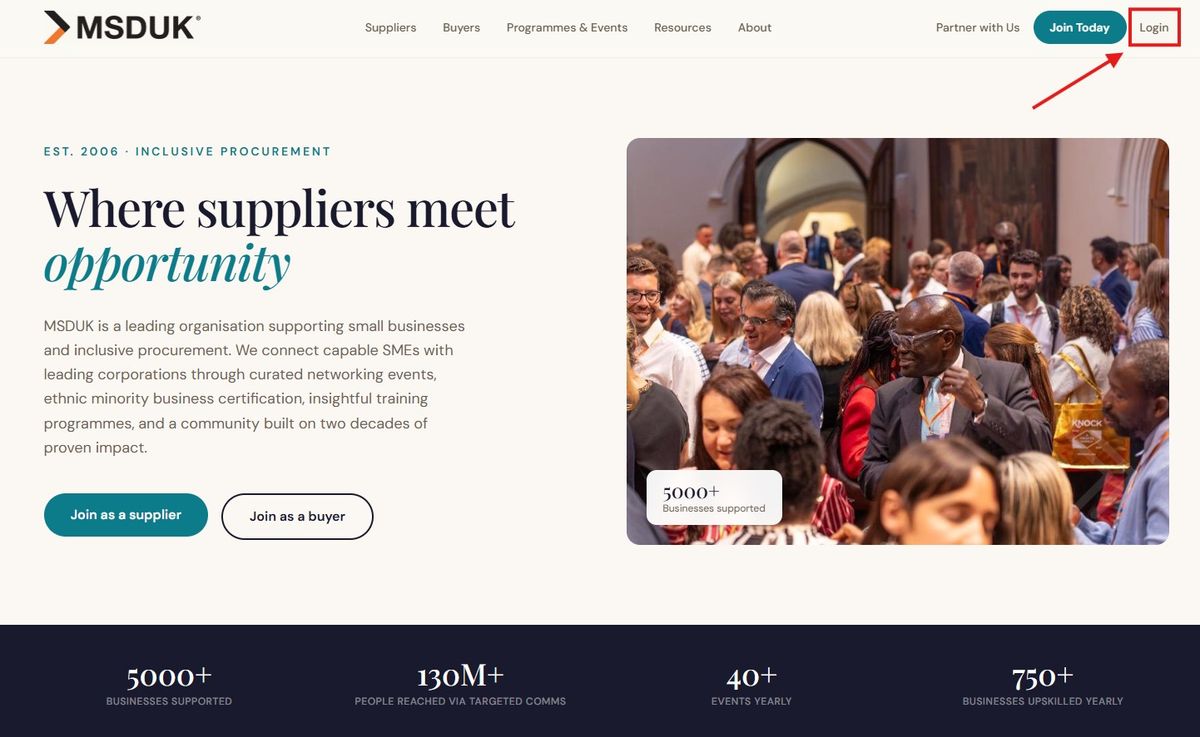
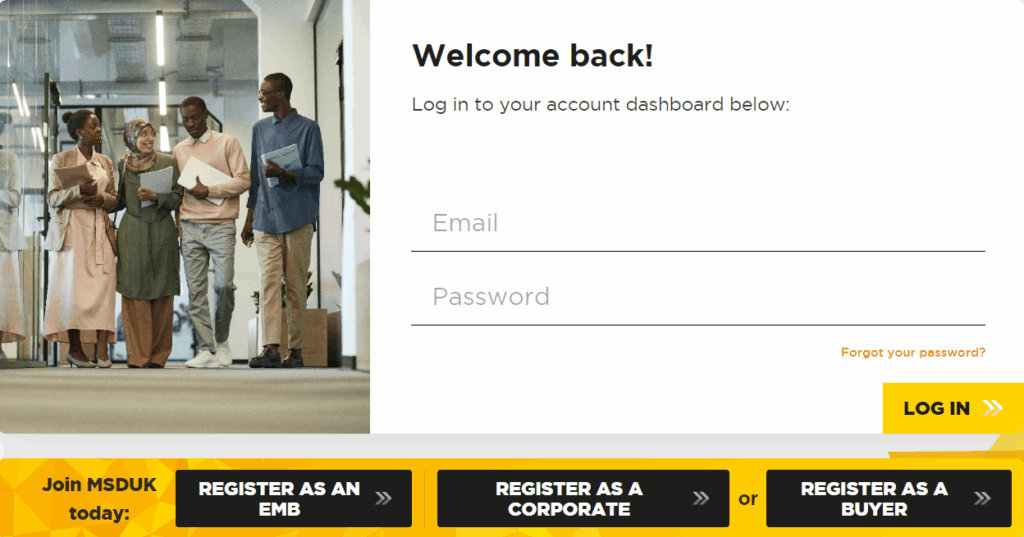
Enter your registered email address and password to access your account.
If you cannot remember your password, select Forgot your password and follow the instructions to reset it.
For further support, contact MSDUK at support@msduk.org.uk.
Dashboard overview
Once you log in successfully, you will be taken to your corporate member dashboard.
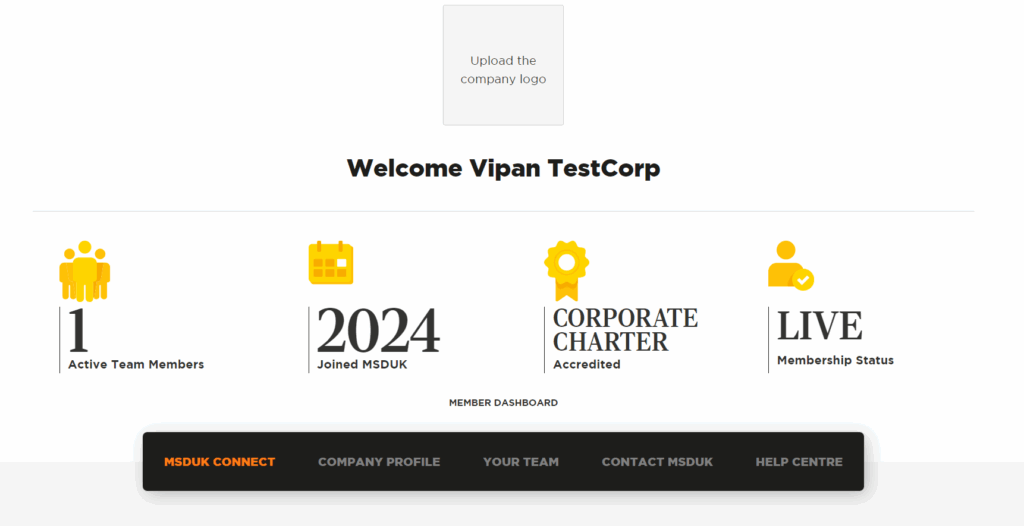
The dashboard shows key information about your membership, including:
- Count of active team members
- Year you joined MSDUK
- Type of membership
- Membership status
The dashboard also includes the main navigation tabs:
- MSDUK Connect
- Company Profile
- Your Team
- Contact MSDUK
- Help Centre
By default, the MSDUK Connect tab is selected when you open the dashboard.
1. MSDUK Connect
The MSDUK Connect tab allows corporate members to search MSDUK business databases.
This includes access to supplier profiles from MSDUK Certified businesses, MSDUK Self-Registered businesses, and the MSDUK Identified Business Database.
Select Search This Database to open the relevant search page.
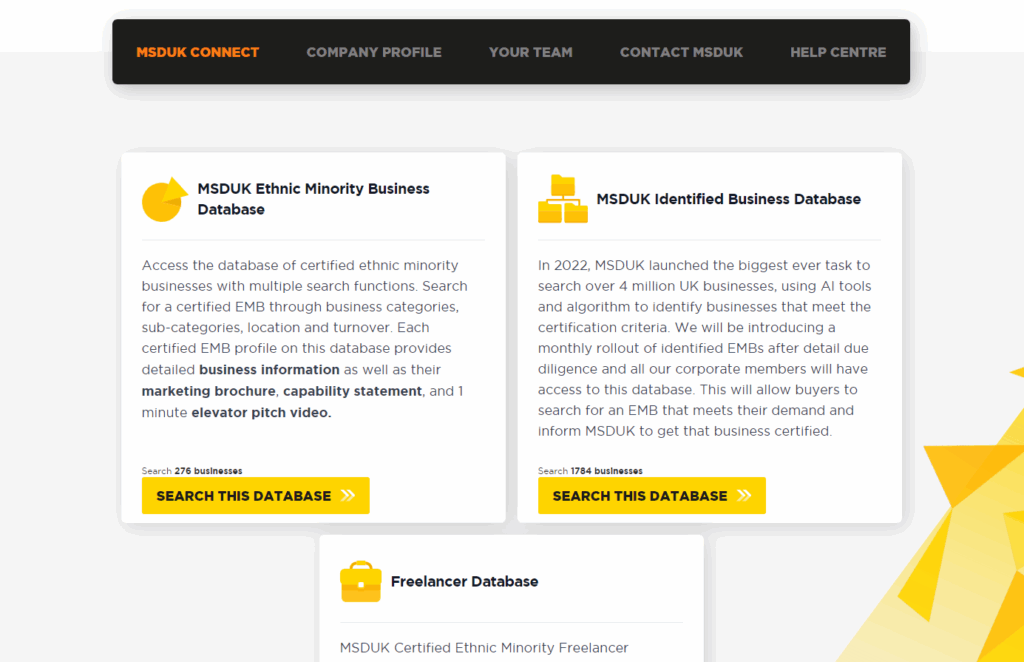
On the search page, you can filter businesses by:
- Membership type
- Industry
- Geography
- Revenue
- SIC code
You can filter the results to show Certified MSDUK Members only or include both Certified and Self-Registered Members.
Businesses will show the relevant label, such as MSDUK Certified or MSDUK Self-Registered, so you can clearly see the status of each business in the search results.
You can also search for businesses by name.
Use Clear Filters to remove all selected filters and start a new search.

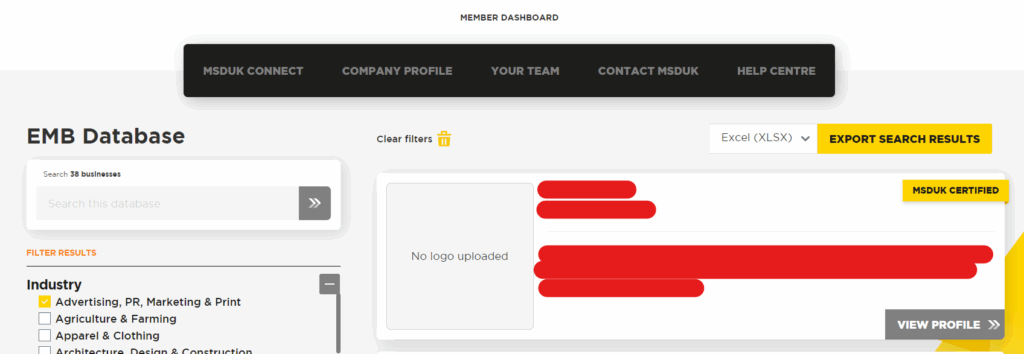
- You can export search results as a CSV or Excel file using the export option.
This can be useful when sharing supplier search results internally or creating a shortlist.

To view more information about a business, select View Profile.
The business profile may include details such as:
- Company name
- Address
- Contact details
- Company website
- Turnover category
- Industry sector
- Geographic coverage
- Business services
- Key customers or customer industries, where provided

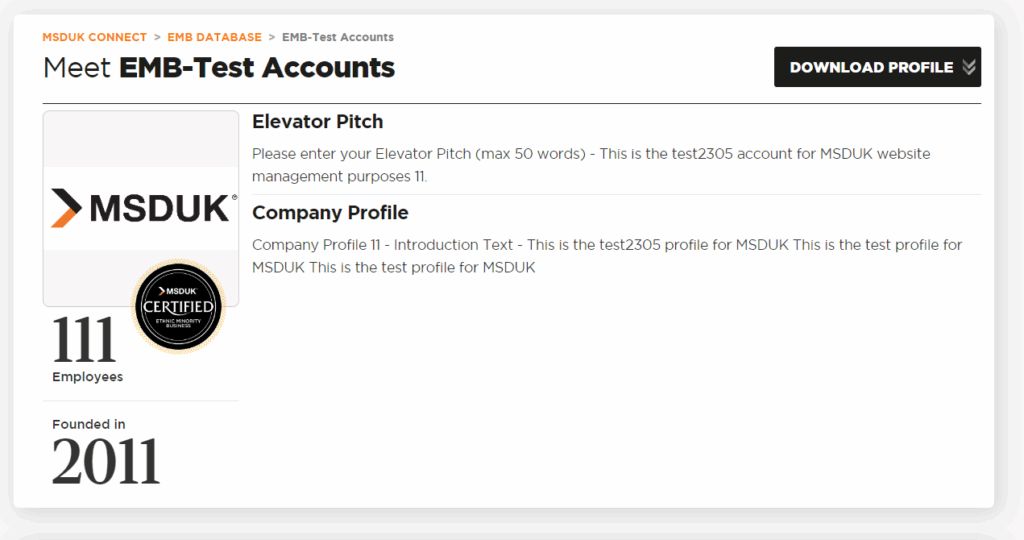
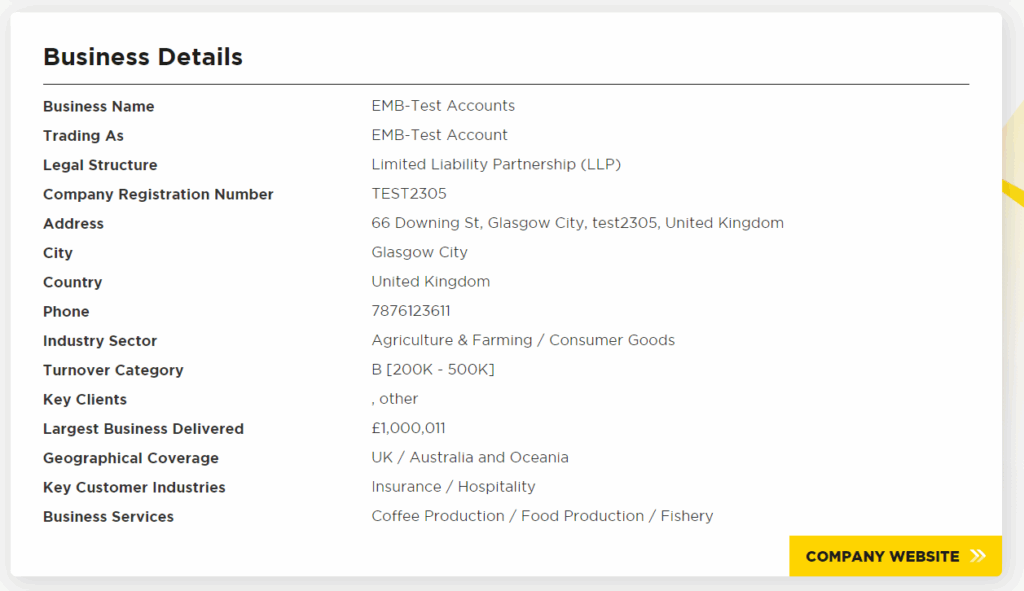
- You can select Download Profile to download the full business profile.
- This can be used to share shortlisted businesses internally with colleagues or procurement teams.
- You can also search the MSDUK Identified Business Database if you are looking for suppliers that are not currently listed in the certified database.
- If you find a business that may be suitable for an opportunity, please contact your corporate relationship manager to discuss the next steps.
2. Company Profile
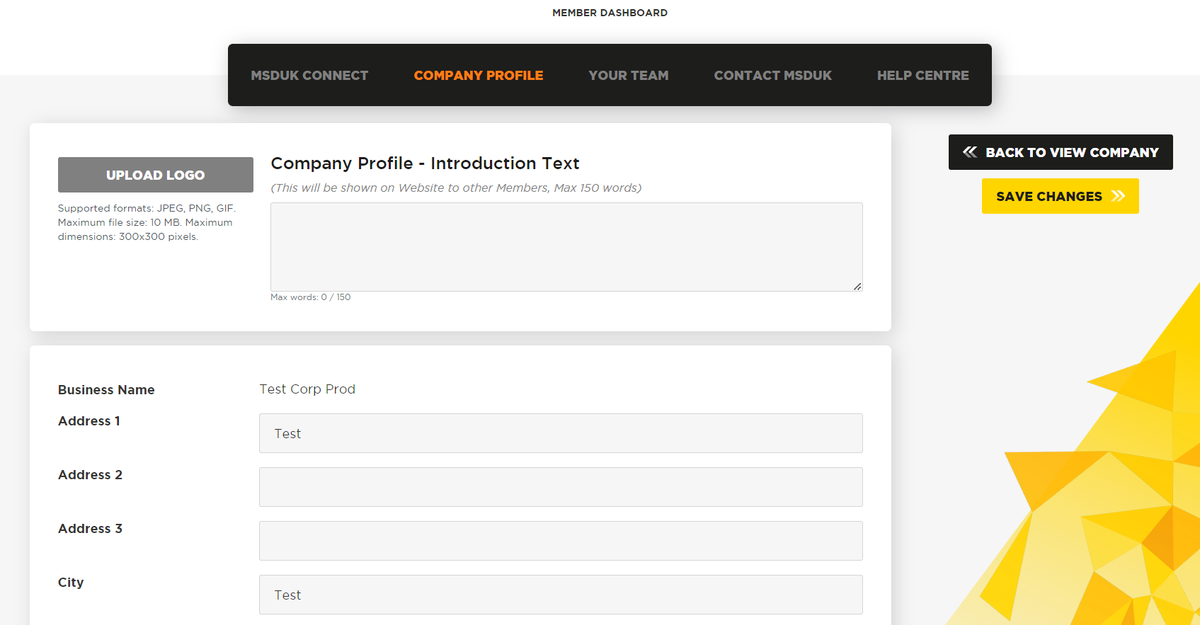
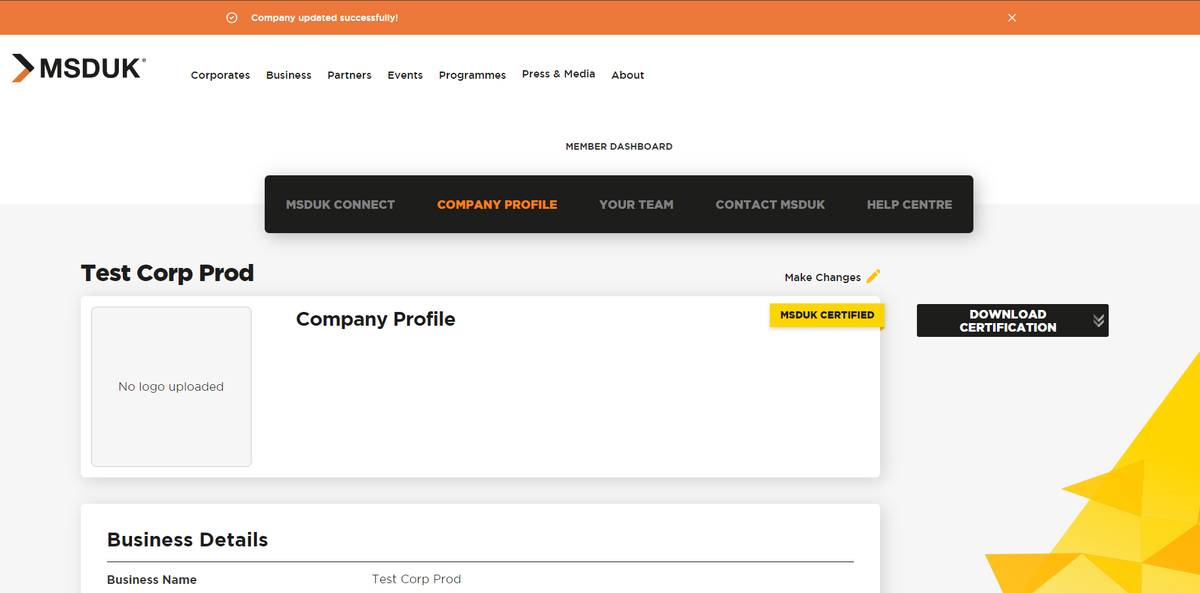
- The Company Profile tab allows you to view and update your company information, logo, and details.
- Admins can edit company profile information that was provided during registration.
- Only Admins can update company details. More information about Admin access is provided in the Your Team section of this guide.

- You can download your certificate from this section by selecting Download Certification.

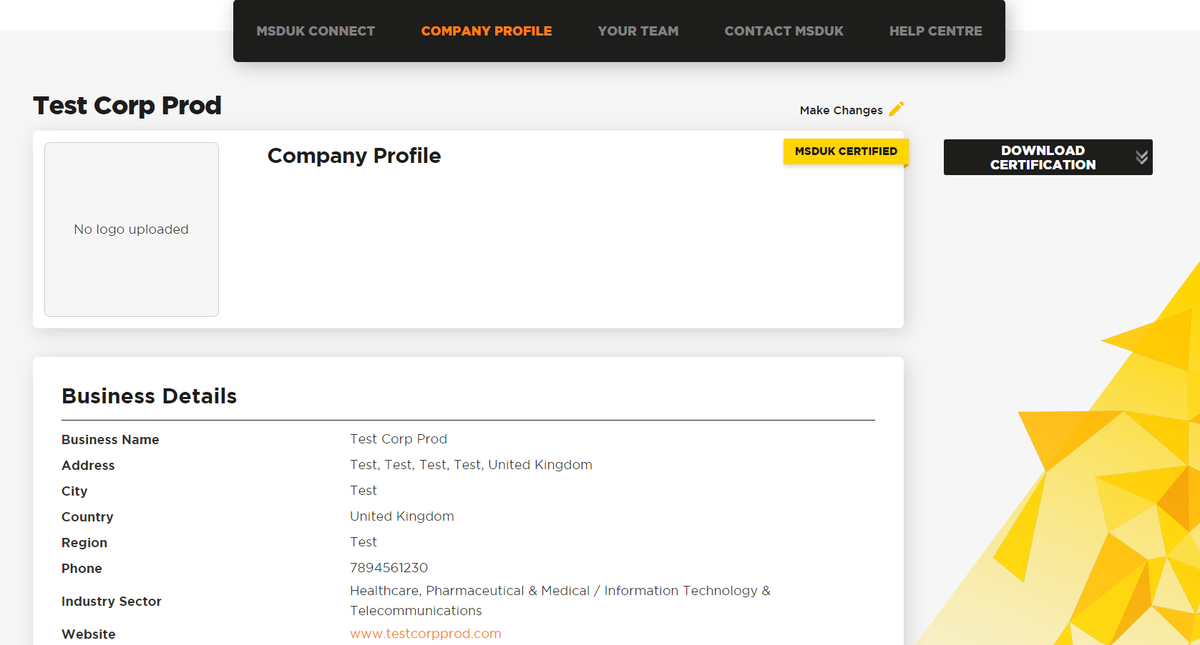
- You cannot edit the business name directly in the dashboard.
- If your business name needs to be changed, contact MSDUK at support@msduk.org.uk.
- After making changes, select Save Changes on the right-hand side of the screen. You will see a confirmation message before returning to the profile view.

3. Your Team
The Your Team section shows the personal information for users connected to your corporate account.
There are two main user roles:
- Admin user
- Standard user
By default, the person who registers the organisation is usually assigned as an Admin and Key Contact.
Admins can edit company information and manage team member details.
Standard users can only edit their own details.
If you are an Admin, you will see an Administrator tag against your profile.

- The Key Contact is shown with a key icon.
- There can only be one Key Contact, but your organisation can have multiple Admin users.

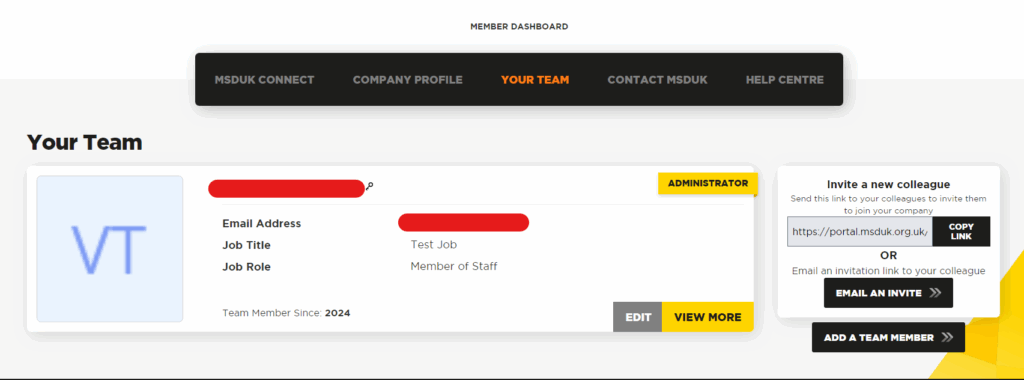
- Select View More to expand a team member profile and see more information.

Inviting buyers and team members
- You can invite team members or buyers to join your corporate dashboard in different ways.
- You can copy the invite link and send it to your colleague directly.
- You can also select Email an Invite to send them an email invitation so they can register as a buyer.

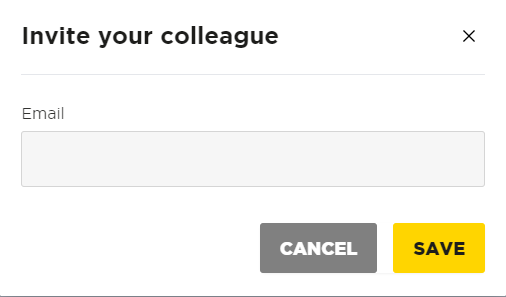
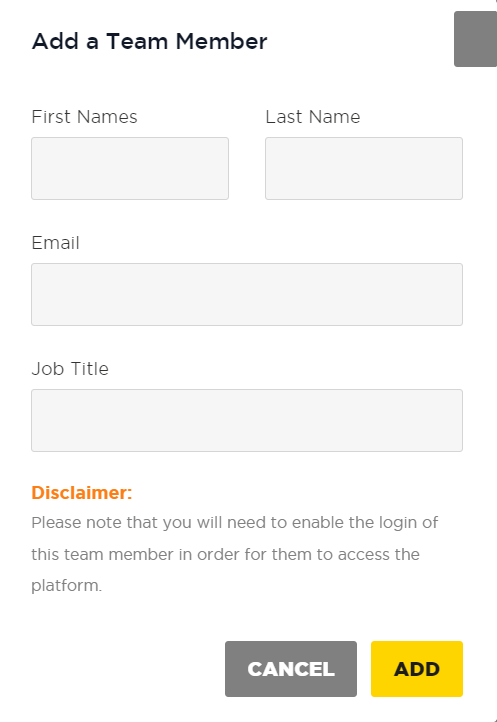
You can also add a team member manually by selecting Add a Team Member.
Enter the following details:
- First name
- Last name
- Email address
- Job title
Then select Add.
Adding a team member does not automatically give them dashboard access.
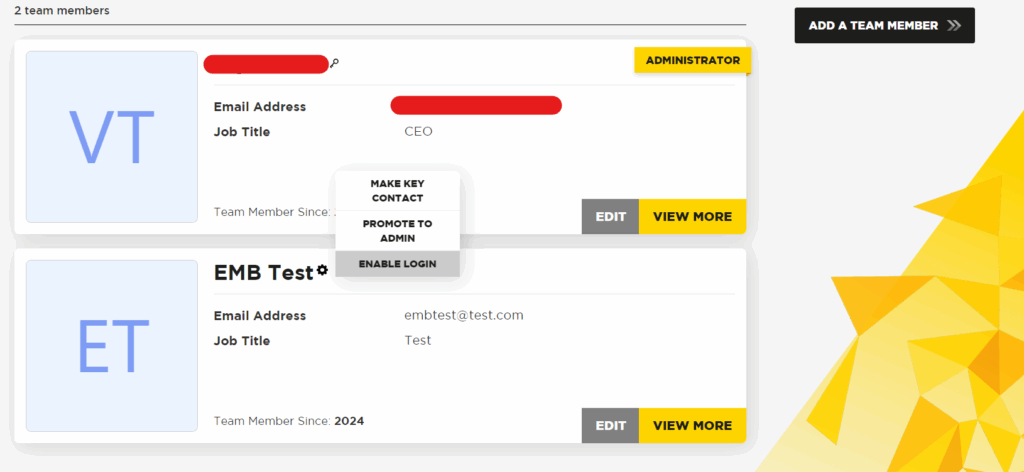
To give them access, you must enable login for that user.


Enabling login for a team member
- To enable login, select the gear icon next to the team member profile and choose Enable Login.
- This will send an email to the user so they can set up their account.
- Once they complete the setup, they will be able to access the dashboard.

Managing team member access
From the team member settings, Admins can:
- Make a user the Key Contact
- Promote a user to Admin
- Demote an Admin to a standard user
If you need to remove a user from your corporate account, contact MSDUK at support@msduk.org.uk.
Use these options carefully to make sure the right people have the correct access.
Important notes about team access
- The Key Contact is automatically given Admin access.
- There can only be one Key Contact.
- Your organisation can have multiple Admin users.
- Only Admins can update company information and manage team member access.
- If a user needs to be removed from the corporate account, contact support@msduk.org.uk.
4. Contact MSDUK
The Contact MSDUK tab opens your email application so you can contact MSDUK support directly.
Use this option if you need help with your dashboard, membership, profile, supplier search, team members, or account access.
You can also contact MSDUK at support@msduk.org.uk.
5. Help Centre
The Help Centre tab takes you to the help page, where you can find guidance on dashboards, registration, renewals, password resets, and frequently asked questions.
For further support, contact MSDUK at support@msduk.org.uk.
Summary
Corporate members can use the dashboard to:
- View membership information.
- Access MSDUK Connect.
- Search Certified, Self-Registered, and Identified businesses.
- Filter businesses by membership type, industry, geography, revenue, and SIC code.
- Export supplier search results.
- View and download business profiles.
- Update corporate company profile information.
- Download corporate certification.
- Add and manage team members or buyers.
- Assign Admin users and the Key Contact.
- Contact MSDUK support.
- Access Help Centre guidance.
Was this helpful?
Related Articles
You might also find these helpful
Certified SME Member Renewal
If your MSDUK certification is due for renewal, you can complete the renewal process through the MSDUK Portal. This guide explains how to log in, review your company information, complete the renewal application, upload the required documents, and submit your application for review.
Read articleCertified SME member dashboard guide
This guide explains how certified SME members can use the MSDUK member dashboard. The dashboard allows you to view your membership status, access MSDUK Connect, update your company profile, manage team members, contact MSDUK, and access Help Centre articles.
Read articleCan I access information about other members of MSDUK community?
Certified members can connect with our large network of businesses from all over the UK for your own supply chain fulfilment. To access the SME Supplier Database, please login to your Dashboard on the MSDUK portal and search for businesses that match your needs.
Read article