Certified SME member dashboard guide
Last updated 18 June 2026
This guide explains how certified SME members can use the MSDUK member dashboard.
The dashboard allows you to view your membership status, access MSDUK Connect, update your company profile, manage team members, contact MSDUK, and access Help Centre articles.
Certified SME member dashboard guide
Logging in
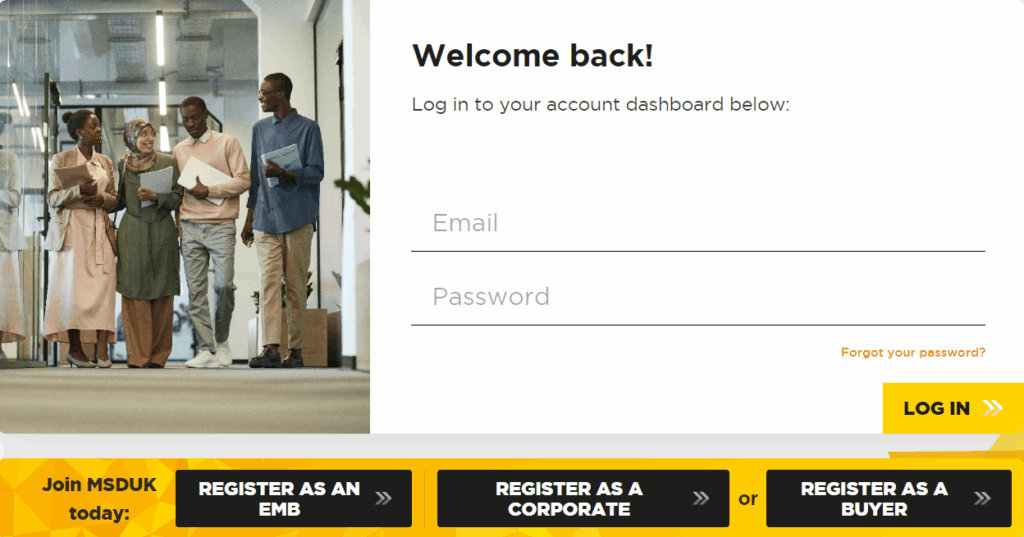
- Once your application has been approved, you can access your MSDUK member dashboard by selecting Log in on the MSDUK website.
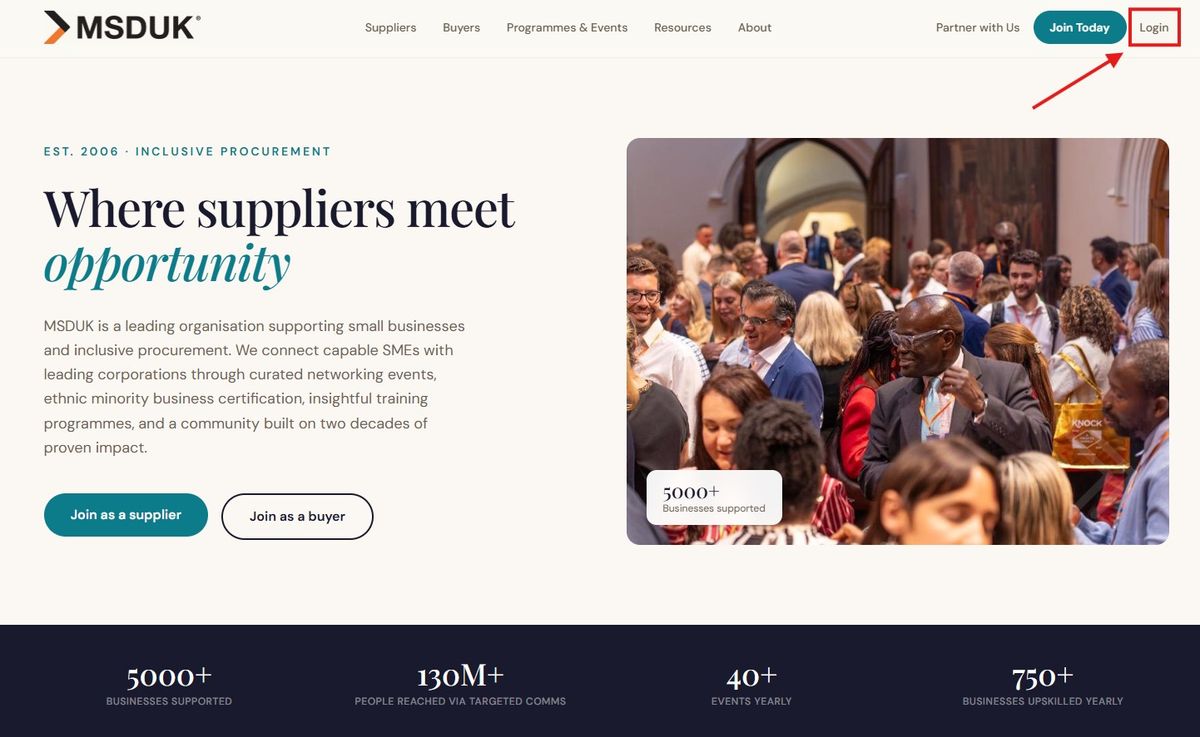
Enter your registered email address and password to access your account.
If you cannot remember your password, select Forgot your password and follow the instructions to reset it.
For further support, contact MSDUK at support@msduk.org.uk.
Dashboard overview
Once you log in successfully, you will be taken to your member dashboard.
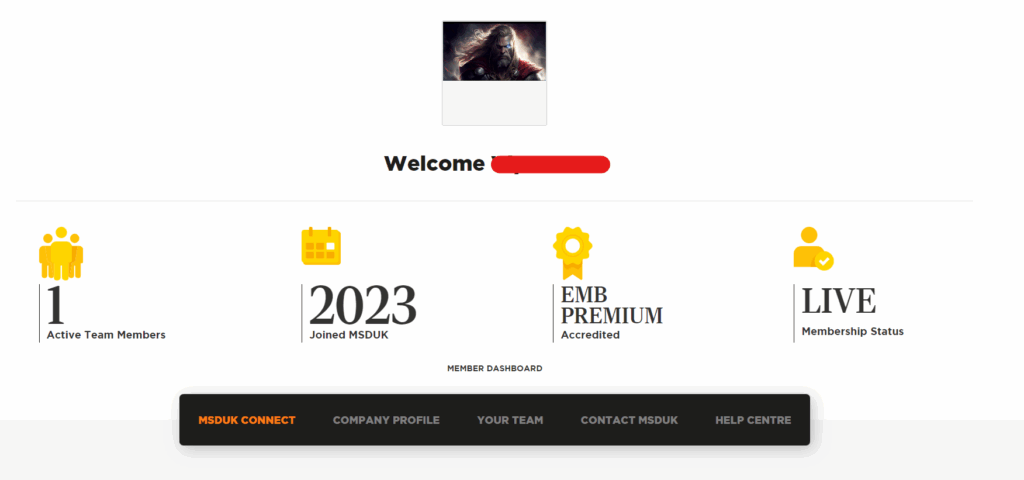
The dashboard shows key information about your membership, including:
- Count of active team members
- Year you joined MSDUK
- Type of membership
- Membership status
The dashboard also includes the main navigation tabs:
- MSDUK Connect
- Company Profile
- Your Team
- Contact MSDUK
- Help Centre
By default, the MSDUK Connect tab is selected when you open the dashboard.
1. MSDUK Connect
- The MSDUK Connect tab gives you access to the SME member database.
- This section helps certified businesses connect with other SME members for networking, collaboration, and business opportunities.
- Select the relevant button to open the search page.

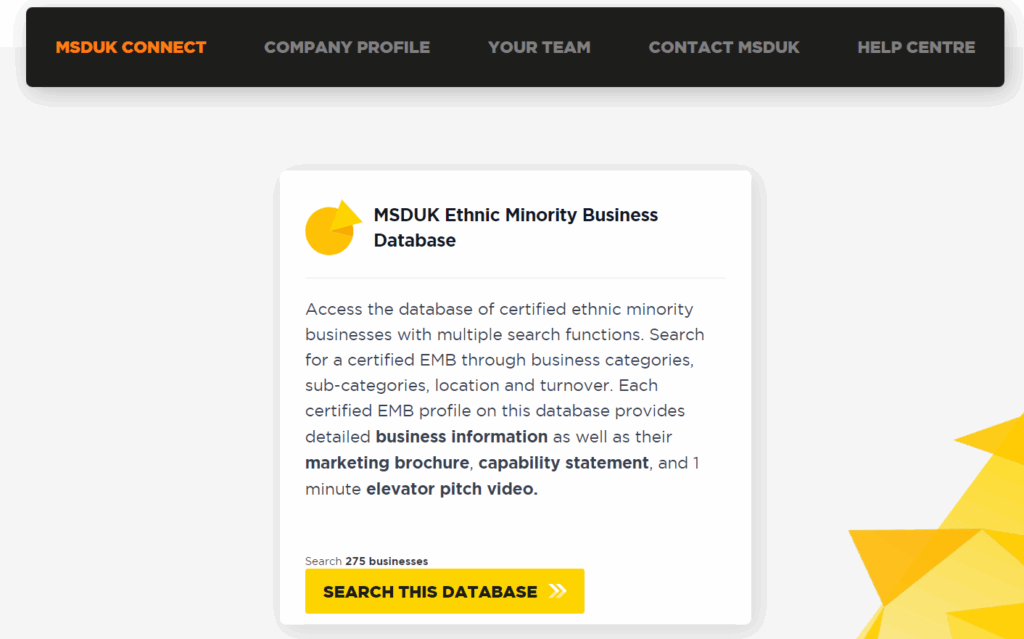
On the search page, you can filter businesses by:
- Industry
- Geography
- Revenue
- SIC code
You can choose to search Certified MSDUK Members only or include both Certified and Self-Registered Members.
You can also search for businesses by name.
Use the reset option to clear all filters and start a new search.

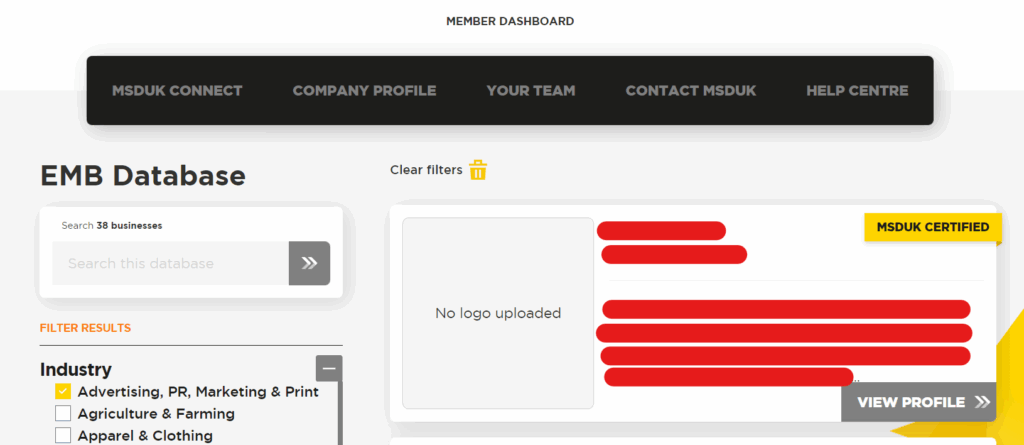
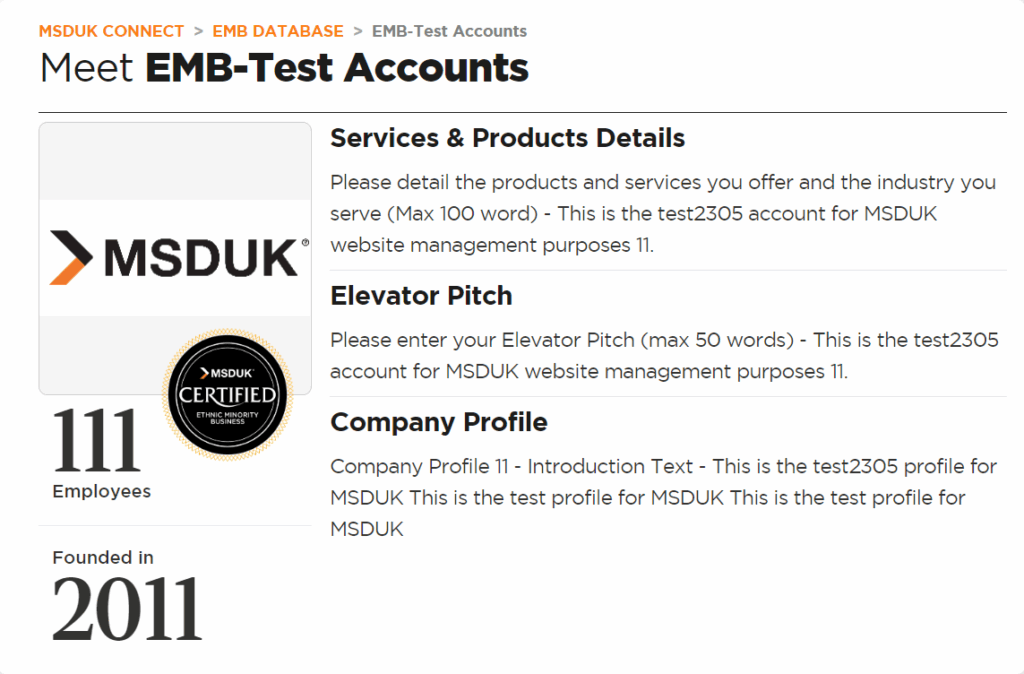
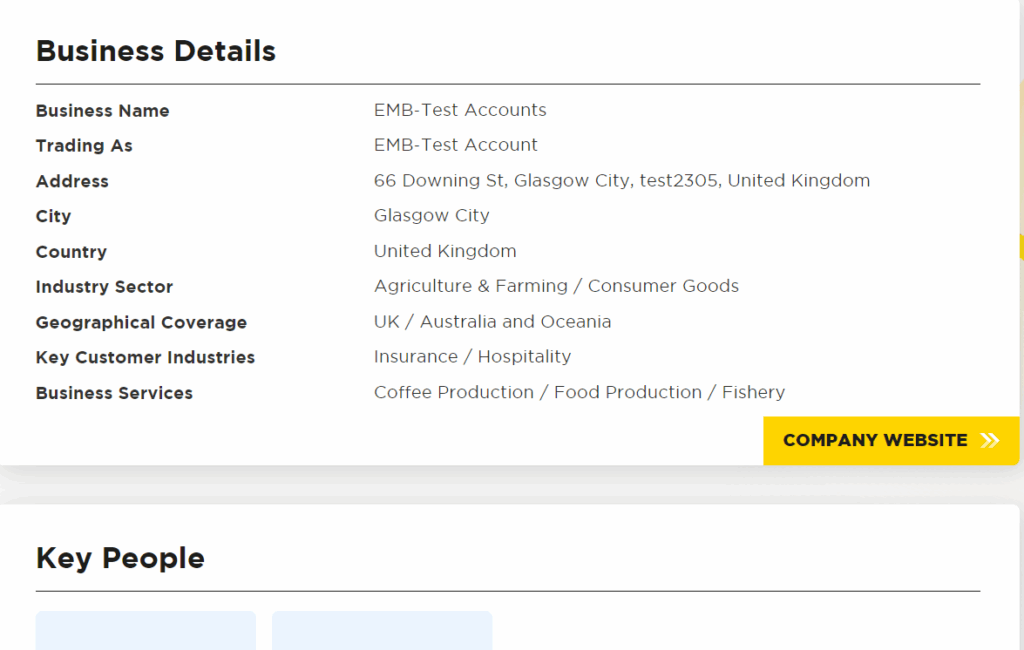
- To view more information about a business, open the business profile.
- The profile may include details such as the company name, address, contact information, and business description.

2. Company Profile
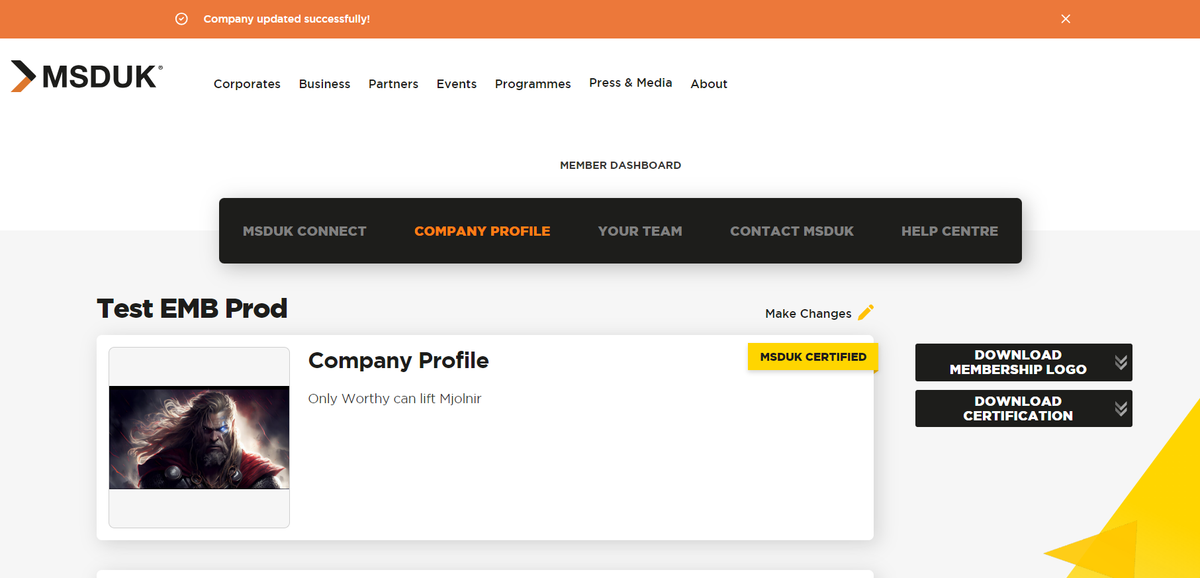
- The Company Profile tab allows you to view and update your company information, logo, and business details.
- Admins can edit the company profile information provided during registration.
- Only Admins can update company details. More information about Admin access is provided in the Your Team section of this guide.

- You can also download your certificate and membership logo from this section by selecting the relevant buttons.
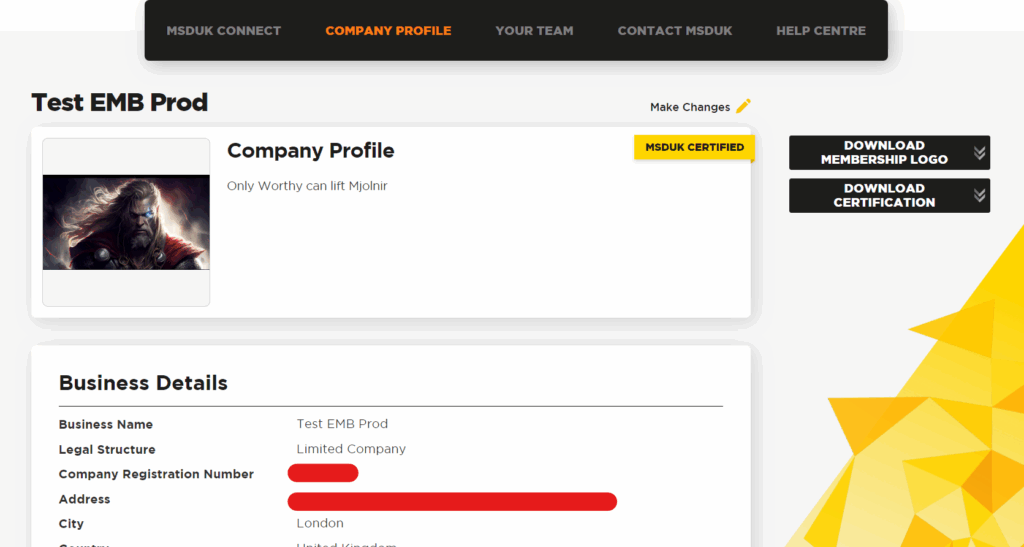
Some fields cannot be edited directly in the dashboard, including:
- Business name
- Trading name
- Legal structure
- Year founded
- Company registration number
- Financial details
If any of these details need to be changed, contact MSDUK at support@msduk.org.uk.
Ownership details and financial documents can be updated during the renewal process.
You can update your capability statement and proof of turnover from the Make Changes option in the Company Profile section.
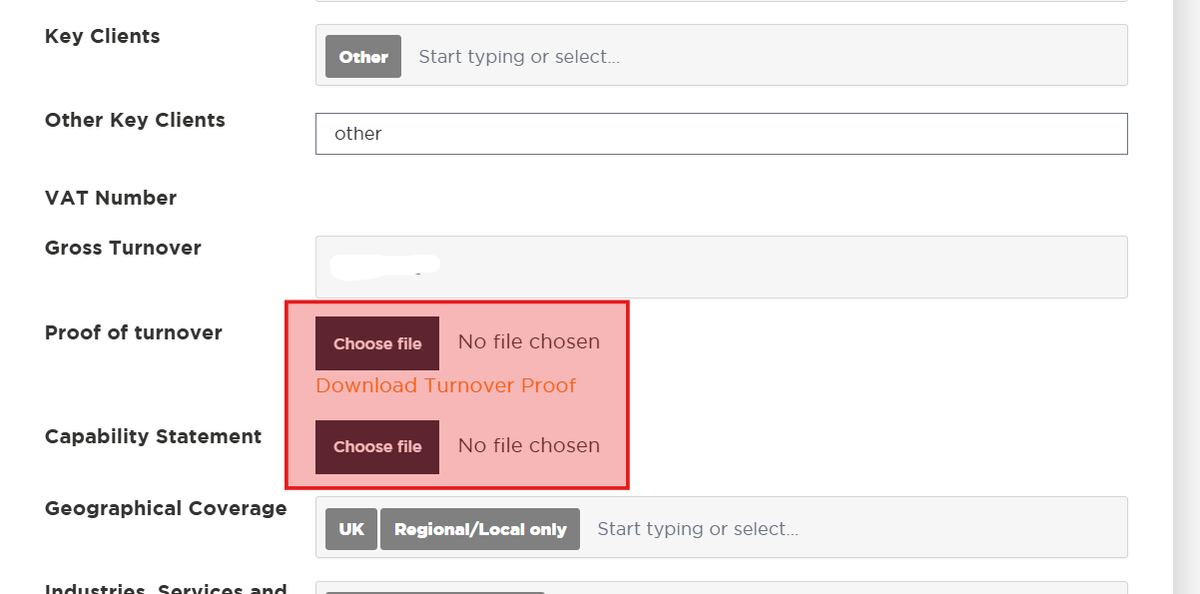
Use this option if you need to upload a new capability statement, replace an old document, or update your latest proof of turnover.
After making your changes, make sure you save or submit the updated information before leaving the page.
After making changes, select the update button on the right-hand side of the screen. You will see a confirmation message before returning to the profile view.
Why your company profile matters
- Your company profile is one of the best ways to highlight your business to corporate members.
- Corporate users can view SME profiles when searching for suppliers and reviewing potential businesses for opportunities.
- Keeping your profile up to date helps make sure your business is visible for introductions, procurement opportunities, and potential corporate contracts.
- Your profile may also be used when corporate members are looking to arrange 1-to-1 meetings at MSDUK events, including Business Opportunity Days.
- Other SME members can also view SME profiles. This can support collaboration, networking, and procurement between members.
- We recommend reviewing your profile regularly and adding relevant team members so your business can make full use of its membership benefits.

3. Your Team
The Your Team section shows the personal information for users connected to your company account.
There are two main user roles:
- Admin user
- Standard user
By default, the person who registers the business is usually assigned as an Admin and Key Contact.
Admins can edit company information and manage team member details.
Standard users can only edit their own details.
If you are an Admin, you will see an Admin tag against your profile.

- The Key Contact is shown with a key icon.
There can only be one Key Contact, but your company can have multiple Admin users.

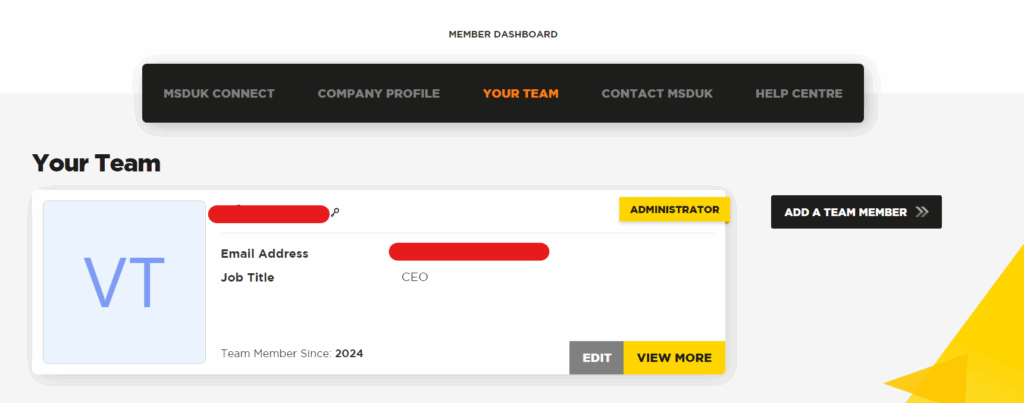
- You can expand a team member profile to view more information.

Adding team members
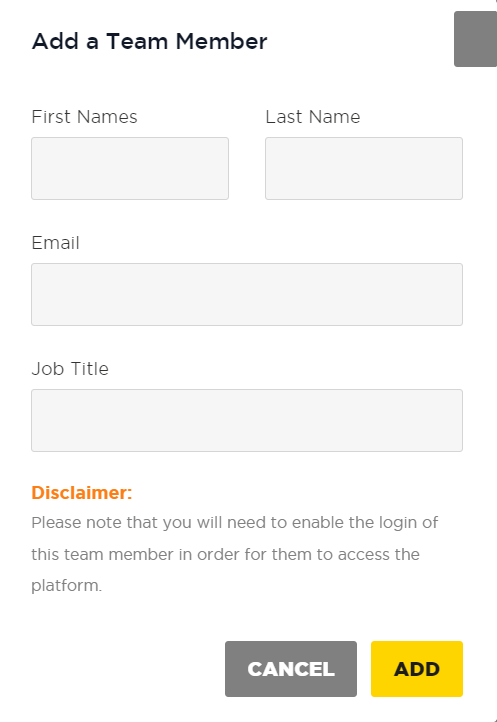
To add a new team member, select the add team member option.
Enter the following details:
- First name
- Last name
- Email address
- Job title
Then save the team member.
Adding a team member does not automatically give them dashboard access.
To give them access, you must enable login for that user.


Enabling login for a team member
- To enable login, select the gear icon next to the team member profile and choose the enable login option.
- This will send an email to the user so they can set up their account.
- Once they complete the setup, they will be able to access the dashboard.

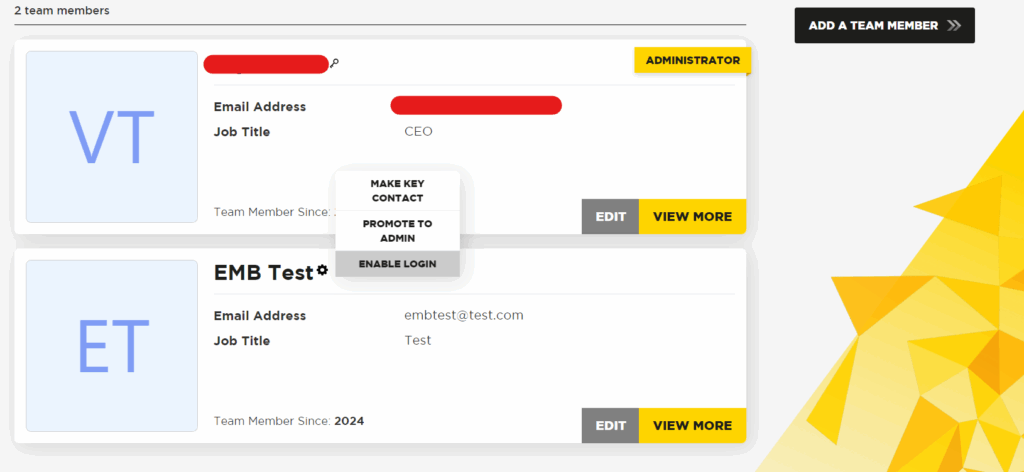
Managing team member access
From the team member settings, Admins can:
- Make a user the Key Contact
- Promote a user to Admin
- Demote an Admin to a standard user
If you need to remove a contact from your company account, please contact MSDUK at support@msduk.org.uk.
Use these options carefully to make sure the right people have the correct access.
Important notes about team access
- The Key Contact is automatically given Admin access.
- There can only be one Key Contact.
- Your company can have multiple Admin users.
- Renewal emails are only sent to the Key Contact.
- If a contact needs to be removed from the company account, contact support@msduk.org.uk.
4. Contact MSDUK
- The Contact MSDUK tab opens your email application so you can contact MSDUK support directly.
- Use this option if you need help with your dashboard, membership, profile, renewal, or account access.
- You can also contact MSDUK at support@msduk.org.uk.
5. Help Centre
- The Help Centre tab takes you to the help page, where you can find guidance on registration, dashboards, renewals, password resets, and frequently asked questions.
For further support, contact MSDUK at support@msduk.org.uk.
Summary
Certified SME members can use the dashboard to:
- View membership information.
- Access MSDUK Connect.
- Search and view other SME member profiles.
- Update company profile information.
- Update their capability statement and proof of turnover.
- Download the certificate and membership logo.
- Add and manage team members.
- Assign Admin users and the Key Contact.
- Contact MSDUK support.
- Access Help Centre guidance.
Was this helpful?
Related Articles
You might also find these helpful
Certified SME Member Renewal
If your MSDUK certification is due for renewal, you can complete the renewal process through the MSDUK Portal. This guide explains how to log in, review your company information, complete the renewal application, upload the required documents, and submit your application for review.
Read articleFor corporate members - Corporate Dashboard
Welcome to the guide on how to navigate through the Corporate dashboard. This section aims to provide you with clear, step-by-step instructions to ensure a smooth and hassle-free experience using the…
Read articleCan I access information about other members of MSDUK community?
Certified members can connect with our large network of businesses from all over the UK for your own supply chain fulfilment. To access the SME Supplier Database, please login to your Dashboard on the MSDUK portal and search for businesses that match your needs.
Read article